

Contact Form 7 GDrive Uploader
Seamlessly upload files to Google Drive from Contact Forms 7 submissions
Contact Form 7 is one of the most popular form plugins for WordPress, and plenty of site owners use it to collect resumes, signed documents, photos and other files. The catch is that those files end up as email attachments or sit on your server. Sending uploads from Contact Form 7 to Google Drive instead keeps every file organized in one place your whole team can reach.
In this guide, you’ll learn why the integration is worth setting up, how to connect Contact Form 7 to Google Drive step by step with our Contact Form 7 GDrive Uploader, and how to fix the most common issues.
Table of Contents
Why Connect Contact Form 7 to Google Drive?
- Efficiency: Files are sent to Google Drive automatically after each submission, so nobody has to download attachments and re-upload them by hand. Fewer manual steps also means fewer mistakes.
- Organization: Uploads land in the Google Drive folder you choose, where they are easy to find, share and manage.
- Accessibility: Your team can open submitted files from any device with Google Drive, including the mobile app.
- Lower hosting load: Offloading file storage to Google Drive can reduce the space uploads take up on your web server.

How to Upload Files from Contact Form 7 to Google Drive: 4 Steps
Here is the general setup process. For exact screens and settings, follow the plugin documentation that comes with your download.
Step 1: Install the Plugins
- Install and activate Contact Form 7 on your WordPress site.
- Download the Contact Form 7 GDrive Uploader add-on from Ristretto Apps, then upload and activate it from the WordPress admin.
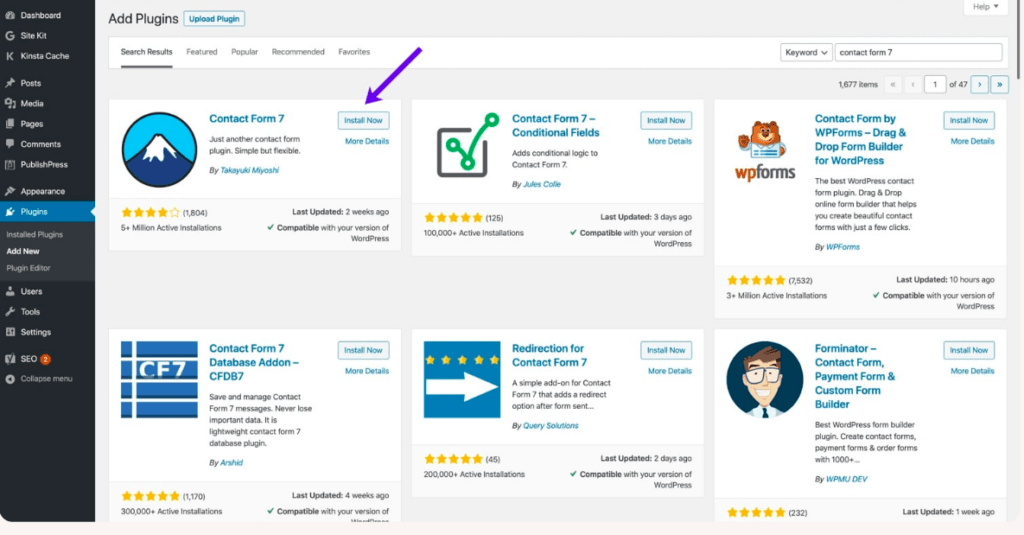
Step 2: Configure Your Google API Credentials
The add-on connects to your Google account through Google API credentials. Create them in the Google Cloud Console, enable the Google Drive API, and enter the credentials in the plugin settings as described in the documentation.
Step 3: Add a File Upload Field to Your Form
Create or edit a form in Contact Form 7 and add a standard file upload field. The GDrive Uploader works with the regular Contact Form 7 upload field, so you don’t need a special field type.
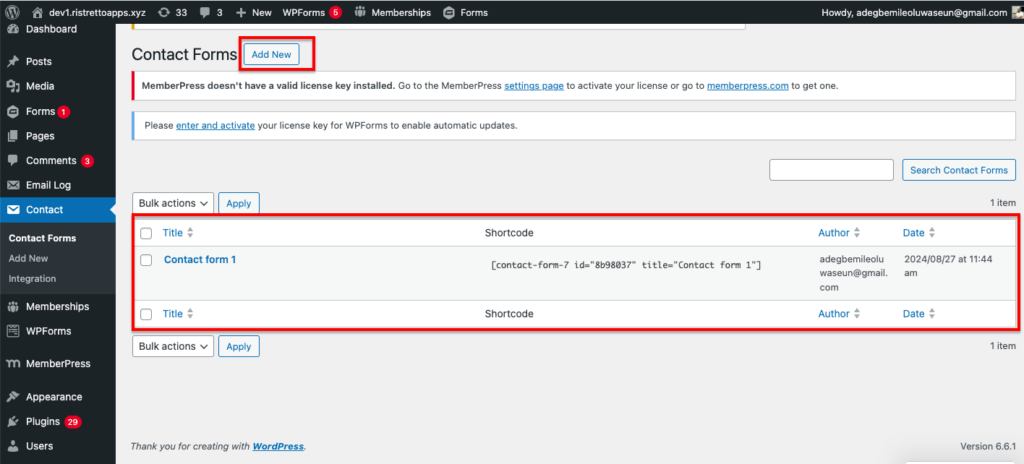
Step 4: Choose the Google Drive Folder and Test
In the plugin settings, choose where uploads should go. Then submit a test entry and confirm the file appears in Google Drive.
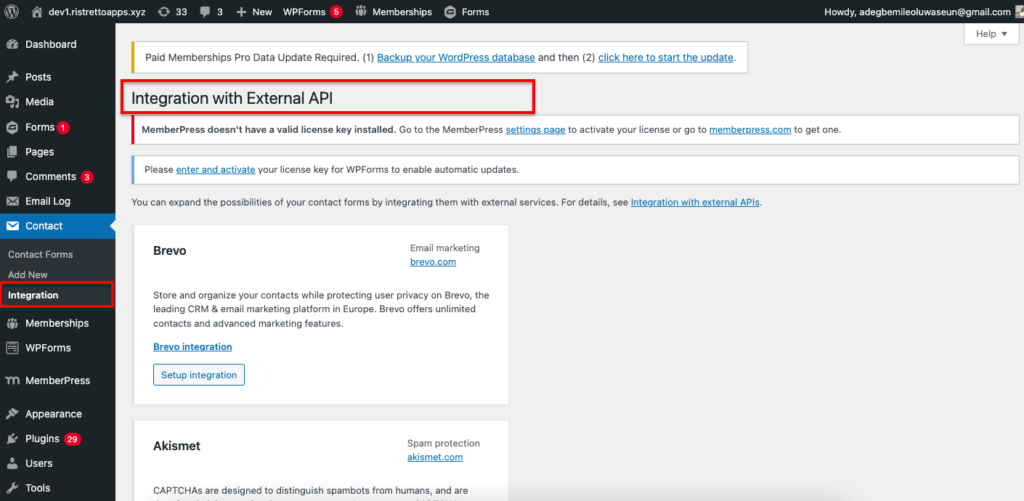

Key Features of the Contact Form 7 GDrive Uploader
- Send files to Google Drive automatically: Attachments are sent to Google Drive after a visitor submits your form.
- Standard upload field: Use the normal Contact Form 7 file upload field in any form.
- Fast setup: Configure a Google Drive feed and choose a specific location, or set the destination dynamically from the submission.
- Custom parent folder (Pro): Upload to a folder you choose instead of the default “Uploaded Files” folder.
- Folders from form fields (Pro): Create a new Google Drive folder named from a form field, such as the visitor’s name, and store all of their files there.
The Basic plan covers the core upload features, while custom folders and folders created from form fields are part of the Pro and Developer plans. See the product page for current pricing.
Troubleshooting Contact Form 7 to Google Drive Uploads

- Authentication errors: Double-check that your Google API credentials are entered correctly. If errors continue, create new credentials in the Google Cloud Console and reconnect.
- File size limits: Upload limits mostly come from your server. Increase the
upload_max_filesizeandpost_max_sizevalues in your PHP settings, and make sure your Google Drive account has enough free storage. - Wrong folder: Check the destination folder in the plugin settings and confirm that the folder still exists in Google Drive.
- Submissions not uploading: Temporarily deactivate other plugins to look for conflicts, and make sure WordPress, Contact Form 7 and the GDrive Uploader are up to date.
- Permission issues: Make sure the connected Google account can access and edit the destination folder. Re-authenticate if needed.
Conclusion
Connecting Contact Form 7 to Google Drive takes repetitive file handling off your plate and keeps every upload organized where your team already works. Install the add-on, connect your Google account, add an upload field and run a quick test.
Using Gravity Forms instead? Take a look at our Gravity Forms to Google Drive Uploader, or read our best practices for securing Contact Form 7 and Google Drive uploads.

One Response