

Contact Form 7 GDrive Uploader
Seamlessly upload files to Google Drive from Contact Forms 7 submissions
When you use Contact Form 7 with Google Drive, visitors’ files move from your website straight into your cloud storage. Those files can include resumes, IDs, contracts and other personal information, so Contact Form 7 Google Drive security deserves the same care as any other part of your site.
This guide covers why data security matters, the best practices to follow when you set up the integration, and how to troubleshoot common security issues.
Table of Contents
Why Data Security Matters When Using Contact Form 7 with Google Drive
- Protects sensitive information: Keeping uploads away from unauthorized eyes is essential for customer details, financial records and other confidential files.
- Supports compliance: Depending on your industry and location, regulations such as GDPR or HIPAA may apply to the data you collect. Good security habits make compliance easier to achieve.
- Builds trust: Clients and partners are more comfortable sharing files when they know you handle them carefully.
7 Best Practices for a Secure Contact Form 7 and Google Drive Integration
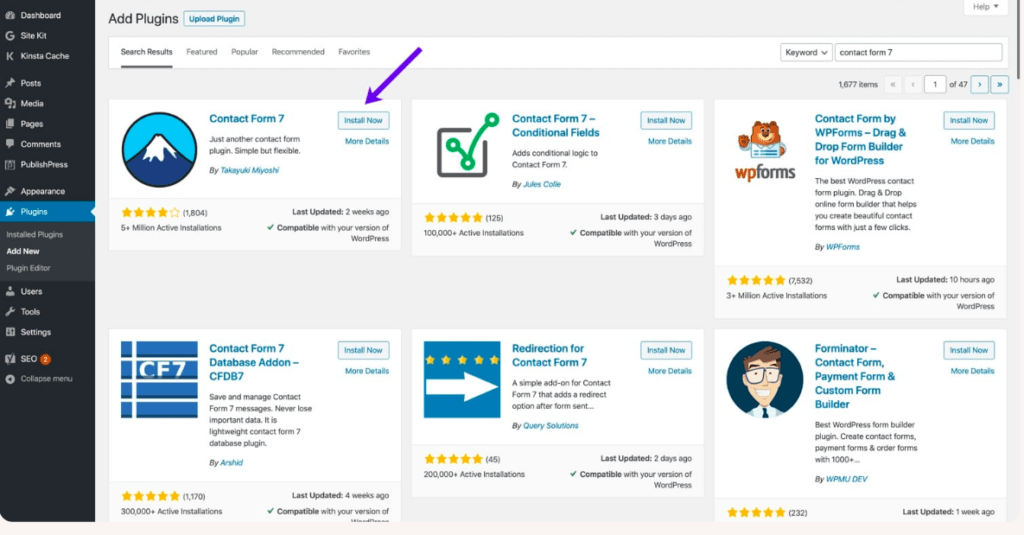
1. Use a Dedicated Integration Plugin
Instead of downloading attachments from emails and re-uploading them by hand, use a purpose-built add-on such as our Contact Form 7 GDrive Uploader. It sends files from the standard Contact Form 7 upload field to the Google Drive folder you choose, which cuts down on copies of sensitive files sitting in inboxes.
2. Configure the Google API with Security in Mind
- Create a dedicated project in the Google Cloud Console for your website.
- Enable the Google Drive API and create credentials for that project only.
- Rely on OAuth 2.0 for authorization, and never share your credentials publicly or commit them to code repositories.
3. Serve Your Forms Over HTTPS
Make sure your whole site, including every page with a form, loads over HTTPS. HTTPS encrypts data as it travels between the visitor’s browser and your server, protecting uploads from interception.
4. Manage Google Drive Permissions Carefully
Store uploads in a dedicated folder and share it only with the people who need it. Review who has view, edit or share access, and remove anyone who no longer needs it.
5. Keep WordPress and Your Plugins Updated
Update WordPress, Contact Form 7 and the GDrive Uploader regularly so you always have the latest security fixes.
6. Back Up and Audit Regularly
Back up your site and important data on a schedule, and run periodic security audits to spot weak points before they turn into problems.

7. Train Your Team and Plan for Incidents
Teach staff how to recognize phishing attempts and handle sensitive files. Keep a simple incident response plan so everyone knows what to do if a breach happens.

Troubleshooting Contact Form 7 Google Drive Security Issues

- Authentication problems: Confirm that your API credentials are configured correctly and haven’t been compromised. If in doubt, create new credentials and reconnect.
- Data transfer errors: Check that your site’s SSL certificate is valid so every form submission travels over HTTPS.
- Access control issues: Review folder sharing in Google Drive and adjust permissions so only authorized people can open uploaded files.
Conclusion
Using Contact Form 7 with Google Drive can save your team a lot of time, as long as you treat Contact Form 7 Google Drive security as part of the setup. Follow these best practices to protect your visitors’ files, support your compliance needs and build trust with your clients.
New to the integration? Start with our step-by-step guide to uploading files from Contact Form 7 to Google Drive.

One Response