

Gravity Forms Delayed Email Notifications
Schedule Sending Gravity Forms Email Notifications by Period-of-Time, Specific-Date, or Form-Field from the Moment of Submission
Customer reviews matter to buyers and sellers alike. Most shoppers check reviews before they buy, and many would rather choose a product with good reviews than one with bad reviews or none at all. Reviews influence purchase decisions and show that your business is credible. If you sell through WordPress, you can automate a customer review in Gravity Forms so the request arrives at just the right time.
Think of reviews and testimonials as word of mouth for online businesses. People often prefer events, courses or products that others have already rated, and they are more willing to spend money when they see real feedback from previous customers.
Table of Contents
What Makes a Good Customer Review, and When Should You Ask?
What counts as a good or bad review is subjective. Ideally, a good review is detailed, constructive and, most importantly, genuine. Real reviews from customers who have actually used your product or service attract far more trust than any number of fake ones.
Timing is everything when you ask for a review. Give customers enough time to use your product first, so don’t ask right after they buy. But don’t wait too long either, or they may no longer remember their purchase.
The goal is to ask when your customer is most satisfied with what they bought. The right timing depends on your type of business, but it should come after your customer’s needs have been met.
Why Gravity Forms Alone Sends Review Requests Too Soon
Many small businesses that sell digital products on WordPress use Gravity Forms for checkout and registration forms. Gravity Forms can send notifications based on events such as a form submission or a change in payment status.
However, those notifications go out as soon as the event happens. You could set up a notification that asks for a review, but it would most likely reach customers right after their purchase. To your customer, that can look like you care more about getting a review than about their experience with your product.
How to Send a Customer Review Request in Gravity Forms at the Right Time
Gravity Forms Delayed Email Notifications is a plugin we developed that lets you delay Gravity Forms notifications by a set period of time. With it, you can schedule the email that asks for a customer review in Gravity Forms to go out days, weeks or even a month after a successful purchase.
Scheduling review requests this way gives customers enough time to use your product, so they can share more honest feedback. If they don’t respond to your first request, you can set up a second or third reminder by creating additional notifications with longer delays.
Here’s a step-by-step tutorial for sending customer review requests in Gravity Forms after a delay. Before you start, make sure you have installed and activated both Gravity Forms and Gravity Forms Delayed Email Notifications.
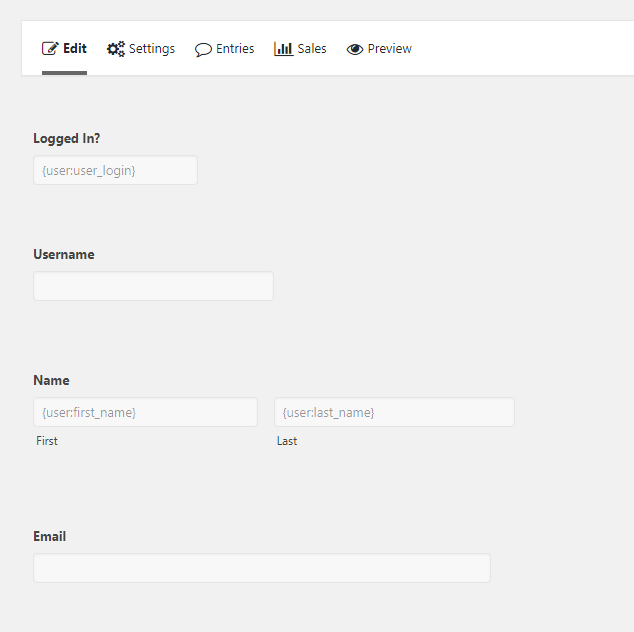
- Open the Gravity Form you want to set a notification for.

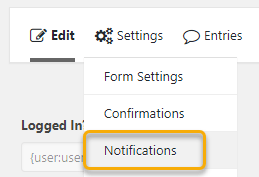
- From the top menu select Form Settings and click on Notifications.

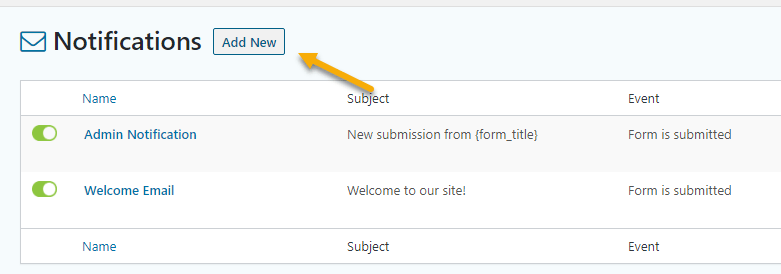
- You’ll see the notifications you’ve set for this form. Now add a new notification.

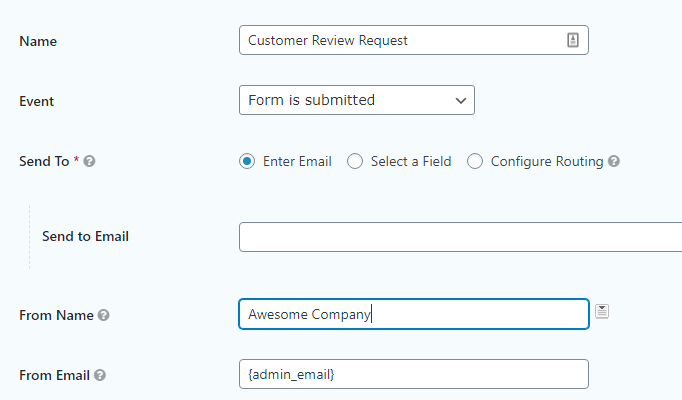
- Name your notification. Choose a name that makes it easy to identify later.

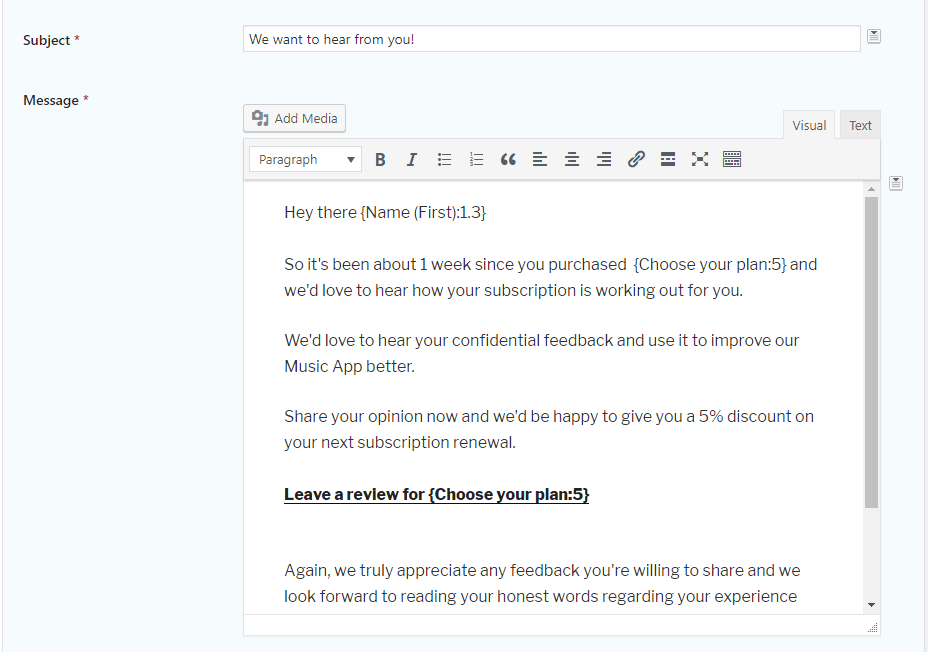
- Set up the email settings, then add the subject and content of your review request.

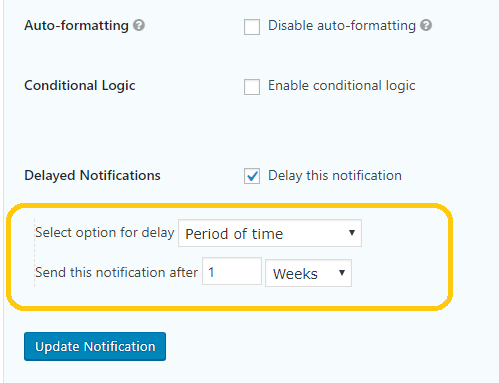
- To delay it, simply scroll down to the bottom part and tick the box for Delay Notification. Then choose how long to wait from the moment of submission, in minutes, hours, days, months or even years. In this example, we delay it by 7 days. One to two weeks after purchase is often a good window for review requests.

Repeat the same steps to set up a reminder email for your review request.
Start Collecting Better Customer Reviews in Gravity Forms
Well-timed review requests lead to more thoughtful, honest feedback, and that builds trust with future buyers. By delaying each request for a customer review in Gravity Forms, you reach customers once they’ve had time to enjoy what they bought.
Related Article: How to Send Delayed Notifications in Gravity Forms

2 Responses