

Display Gravity Forms entries on your WordPress website without writing code or relying on complicated custom development. If you use Gravity Forms, you already know how powerful it is for collecting information. However, one common challenge is making those submissions visible on the frontend for visitors, customers, or logged-in members.
Gravity Forms stores entries securely in your WordPress database, but it doesn’t include a built-in way to display them publicly or privately. That’s where Display Form Entries from Ristretto Apps comes in. This lightweight plugin lets you display Gravity Forms entries in beautiful tables, lists, or grids while giving users the ability to search, filter, and even edit submissions directly from the frontend.
Why Display Gravity Forms Entries on Your Website?
By default, Gravity Forms entries are only visible inside the WordPress admin dashboard. If you want to build a member directory, a job board, a customer portal, or even a simple list of submitted content, you need a way to surface those entries on the public-facing side of your site. Display Form Entries solves this problem elegantly.
Here are the most powerful and creative ways to use this plugin to display Gravity Forms entries on the frontend of your WordPress site.

1. Build a Searchable Member Directory
Let your members register and submit their profiles through a Gravity Forms form, then use Display Form Entries to show a beautiful, searchable directory on the front end. Users can filter by category, location, or specialty — making it easy for visitors to find exactly what they’re looking for.
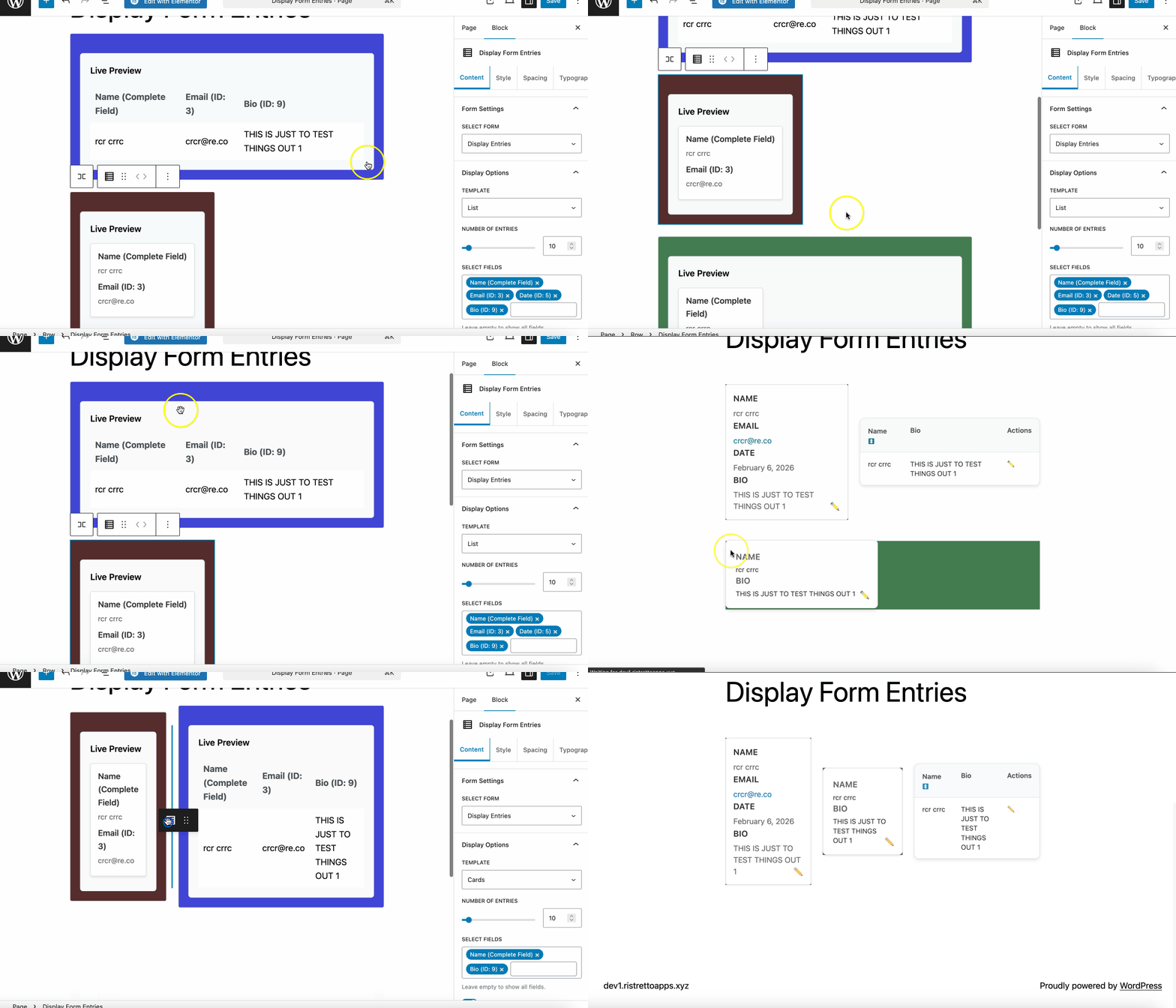
The plugin supports Table, List, and Grid views, so you can choose the layout that fits your brand. The grid view, in particular, works beautifully for directories with profile photos, showing entries as clean cards with thumbnails and key details.
2. Create a Client-Facing Dashboard for Submission Management
Imagine giving your clients the ability to see, edit, and manage their own form submissions without giving them admin access to your WordPress site. With Display Form Entries, this is trivially easy. The front-end editing feature lets logged-in users update their own entries — perfect for job applications, project proposals, or order tracking.
This is especially useful for membership sites. Members can submit content through Gravity Forms and then return later to edit or update it. It eliminates the back-and-forth emails and gives your users a sense of ownership over their data.
3. Publish a Dynamic Job Board or Listings Page
Job boards are one of the most popular use cases for Gravity Forms entries displayed on the frontend. Set up a Gravity Forms submission form for job postings, then use Display Form Entries to render a dynamic listings page. The advanced filtering and smart display controls (available in the Pro version) let job seekers filter by location, job type, salary range, and more.
Each listing can link to a single entry summary page with full details, giving job seekers a dedicated view for each posting. This turns a simple form submission into a full-featured job board experience.
4. Power a Community Reviews & Ratings System
Display Form Entries is getting a Ratings & Reviews feature (coming soon!), but you can already build a review system today. Have users submit reviews through a Gravity Forms form and display them on the frontend with the table or list layout. The search functionality lets visitors find reviews by product name, author, or rating score.
You can even use the Display Specific Form Fields Anywhere feature to pull individual data points — like an average rating or a reviewer’s name — and show them in custom locations across your site using shortcodes or Gutenberg blocks.
5. Internal Dashboards & Team Workflows
Not everything needs to be public. Display Form Entries works equally well for internal use. Build an internal ticket tracking system, an order management dashboard, or a content moderation queue — all without touching PHP or hiring a developer.
The plugin’s advanced styling and display options for Gutenberg mean you can match your internal dashboards to your brand, and the lightweight footprint ensures it won’t slow down your site. Use the grid view for a Kanban-style task board or the table view for a traditional spreadsheet-like interface.
Key Features at a Glance
- Front-end entry display — Table, List, and Grid views to match your design
- User self-editing — Let users edit their own submissions from the front end
- Single entry summary pages — Dedicated detail pages for each entry (Pro)
- Advanced filtering & search — Smart controls to sort and filter entries (Pro)
- Display Form Fields Anywhere — Show individual field values with shortcodes (Pro)
- Gutenberg-native styling — Full block editor support with advanced display options (Pro)
- No coding required — Setup and configure everything from the WordPress admin
Getting Started
Getting started with Display Form Entries is straightforward. Download the plugin from Ristretto Apps, install it on your WordPress site, and you’re minutes away from showing form entries on the frontend. The Basic plan is free and includes the core display and editing features. Upgrade to Pro ($49/year) for advanced filtering, single entry pages, Gutenberg styling, and the ability to display specific fields anywhere. The Developer plan ($99/year) unlocks unlimited site usage.
Ready to display Gravity Forms entries on your frontend? Get Display Form Entries today and transform how your site handles form submissions.
Have questions or creative use cases? Drop them in the comments below — we’d love to hear how you’re using custom entry displays on your WordPress site.
