


Gravity Forms Delayed Notifications is the easiest way to schedule an email notifications that go out from Gravity Forms after a form submission.
Choose a date field on your form to start the clock for your delayed notification instead of the form submission time.
Schedule Gravity Forms notification emails for perfectly timed delayed emails with no limit to the number of notifications per form.

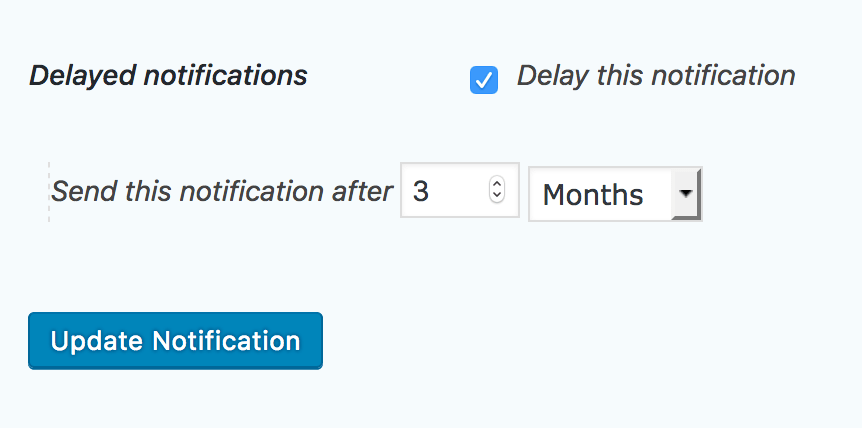
Simply check the box Delay Notifications at the bottom of your Gravity Forms notification config, then select the period of time you’d like from the drop-down and enter the time period you want to delay the message.
See All Outgoing Emails at Your Fingertips*
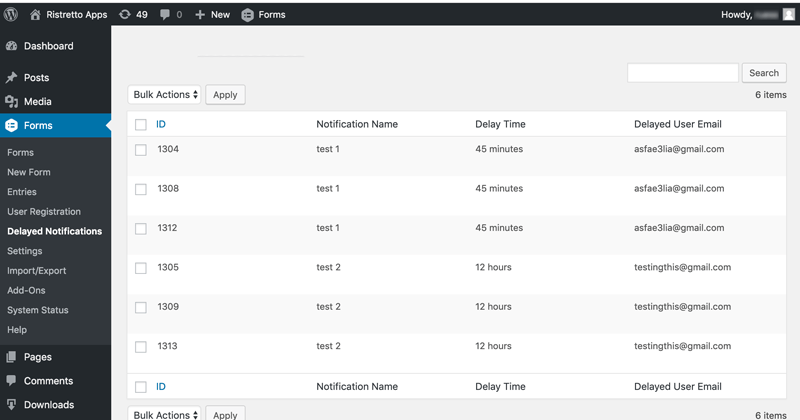
Got a lot of emails scheduled to go out? Wondering whether a particular customer received their notification already? Our Delayed Notifications screen will show you all email notifications that are queued to go out. Need to cancel an outgoing delayed notification before it reaches your customer? No problem, the plugin will allow you to do that as well.

We utilize WordPress’ built-in WP-Cron to ensure that your delayed emails are sent out reliably.
Perfect for Appointment Scheduling!
Perfect for massage therapists, dentists, or any type of service provider that takes appointments and payments through Gravity Forms? Now you can let your customers choose a date and time on your form, and Gravity Forms Delayed Emails Notifications can send their appointment reminder email any time before the date they chose. For example, if they booked you for next Wednesday, our plugin can send them a notification 2 days prior, utilizing the delay feature based upon the date field that you include in your form. Super easy. Super effective!
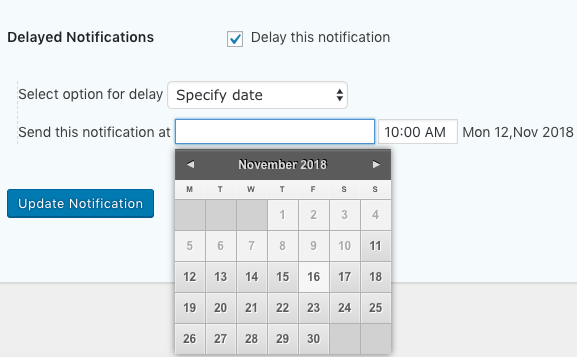

Schedule a notification to be sent out at the next chosen day and time of the week from the moment of submission. For example, if you only want notifications to go out on Wednesdays and Fridays at 8am and someone submits their form on Thursday evening, this feature will send out the notification the next morning (Friday at 8am).
Delay a notification based upon form field values taken from your Gravity Forms. This feature allows you to create a date field and a time field in your form, then to set the schedule date/time for a period of time either before or after that time and date.
For example, if your user chooses the 12th of October at 3pm, you can either send the notification at that exact date and time, or choose to send the email 1 day after or before Oct. 12th at 3pm. This is a great feature for sending reminders about appointment bookings taken with Gravity Forms


Coming Soon to Our Upcoming Pro Version
Need a particular notification to go out daily, weekly, or even monthly, without end? Our Recurring Notifications feature lets you repeat notification at specific intervals. Include a start date, end date, and a specific time you’d like the notifications to repeat for an even more fine tuned delivery sequence.
Scheduled notifications can be queued with either regular form submissions or optionally when a partial entry is created using Gravity Forms Partial Entries add-on.
