

Introduction
Display Form Entries is a lightweight WordPress plugin that allows you to display Gravity Forms submissions directly on the front end of your website.
Instead of keeping form data hidden in the WordPress admin area, Display Form Entries lets you transform submissions into useful front-end experiences such as:
- Public directories
- Vendor listings
- Client portals
- Member dashboards
- Internal data tables
- Submission review pages
The plugin works seamlessly with Gravity Forms and allows site owners to present submitted data in structured layouts such as tables, lists, cards, or linked views.
With the Pro version, you also gain access to powerful features like front-end editing, advanced filtering, styling controls, featured entries, and dynamic field display.
This guide walks you through everything you need to know to install, configure, and use Display Form Entries effectively.
How Display Form Entries Works
Gravity Forms stores all form submissions inside the WordPress database.
Display Form Entries does not duplicate or move this data. Instead, it simply retrieves the existing entries and renders them on the front end of your site using blocks or shortcodes.
This means:
- Gravity Forms continues handling form submissions.
- Display Form Entries handles how entries are displayed.
For example, submissions collected through a Gravity Form can be displayed publicly as a directory, listing, or searchable database.
Installing Display Form Entries
Before using the plugin, you must install and activate it on your WordPress website.
Requirements
Make sure the following are installed:
- WordPress
- Gravity Forms
- Display Form Entries plugin
- Pro license key (if using the Pro version)
Installing via WordPress Dashboard
The easiest way to install the plugin is through the WordPress admin dashboard as explained here.
Step 1
Go to your WordPress Dashboard.
Step 2
Navigate to:
Plugins → Add New
Step 3
Click Upload Plugin.
Step 4
Select the plugin ZIP file you downloaded.
Step 5
Click Install Now.
Step 6
After installation completes, click Activate Plugin.
The plugin is now installed and ready to use.
Installing via FTP
Advanced users can also install the plugin manually using FTP as explained here.
Step 1
Unzip the plugin file on your computer.
Step 2
Connect to your server using an FTP client such as FileZilla.
Step 3
Navigate to the WordPress plugins folder:
wp-content/plugins/
Step 4
Upload the extracted plugin folder.
Step 5
Return to the WordPress dashboard and activate the plugin under:
Plugins → Installed Plugins
Activating the Pro License
If you purchased Display Form Entries Pro, you will need to activate your license.
Step 1
Go to:
Forms → Settings
Step 2
Open the Display Form Entries tab.
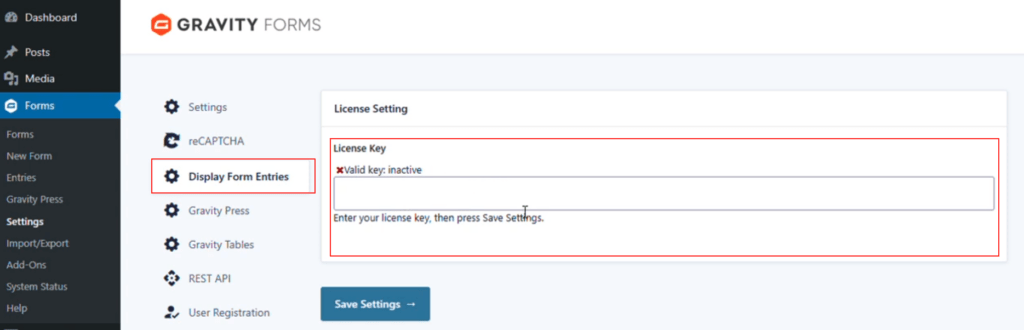
Step 3
Paste your license key.
Step 4
Click Activate License.
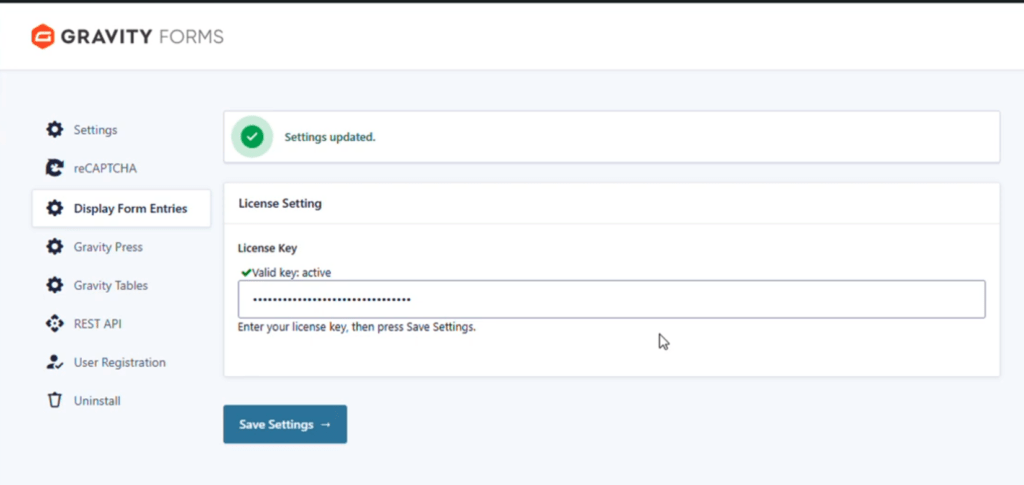
Once activated, Pro features will become available inside the block settings.
Displaying Form Entries on a Page
The primary function of Display Form Entries is to display Gravity Forms submissions on your website.
You can add entries to any page using the Display Form Entries block.
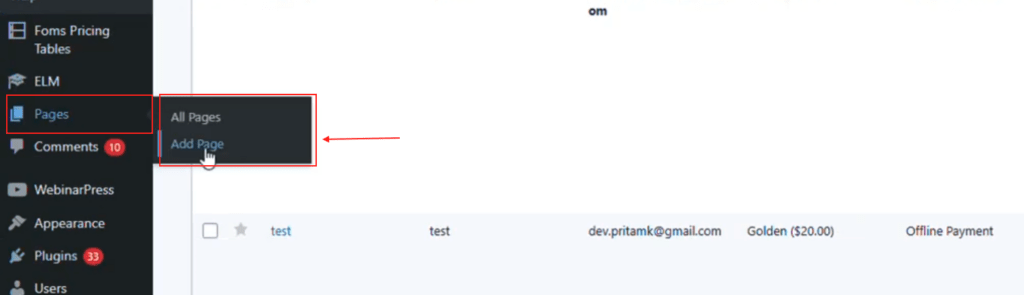
Step 1
Open a page in the WordPress editor.
Step 2
Click the Add Block (+) button.
Step 3
Search for Display Form Entries.
Step 4
Add the block to your page.
Selecting a Form
After inserting the block, choose which Gravity Form you want to display entries from.
Once selected, the plugin will pull submissions from that form and display them in the chosen layout.
Choosing a Display Layout
Display Form Entries provides multiple layout options depending on how you want your data to appear.
Table View
Best for structured data such as directories, reports, or submission lists.
Grid / Card View
Displays entries as individual cards. This is useful for profiles, listings, or visually rich content.
List View
A simple vertical layout showing entries one below another.
Linked List View
Allows entries to link to a separate Single Entry Detail Page, where the full submission is displayed.
Allowing Users to Edit Their Own Entries (Pro)
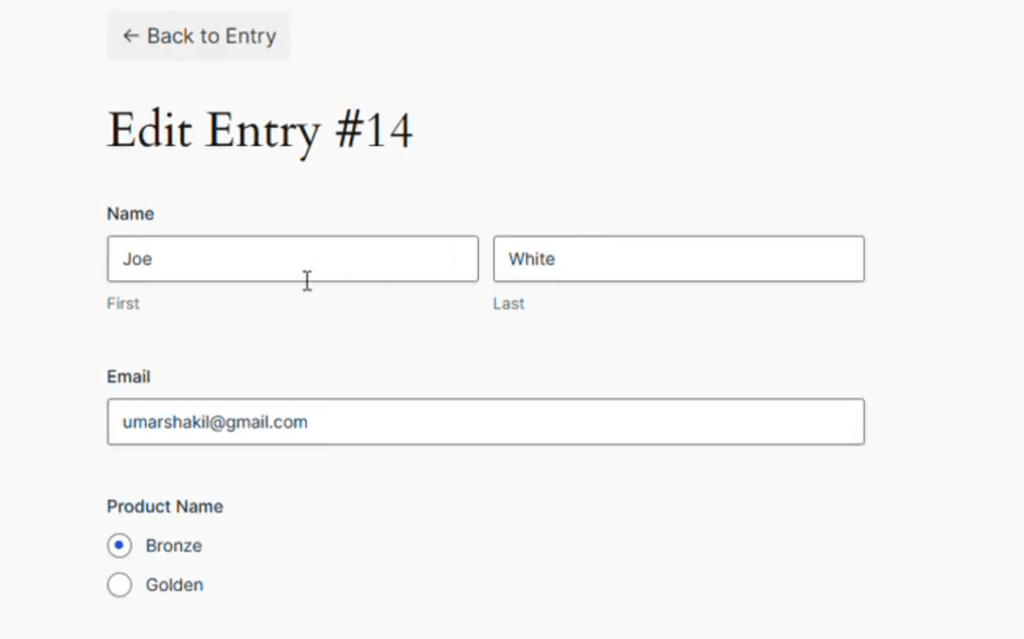
Display Form Entries Pro allows logged-in users to edit their own submissions directly from the front end as explained here.
This is especially useful for:
- Member directories
- Client dashboards
- User profiles
Enabling Front-End Editing
Step 1
Open the page containing the Display Form Entries block.
Step 2
Select the block.
Step 3
In the Content tab, enable the option:
Show Edit Links
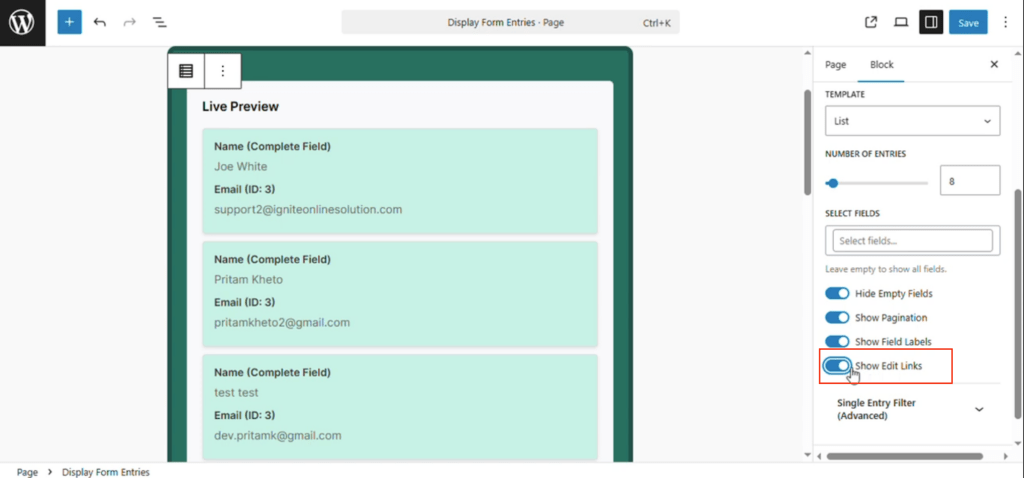
Step 4
Save the page.
Editing Entries from the Front End
After enabling the edit option:
- An edit icon will appear next to entries.
- Users can click the icon to modify their submission.
- Changes can be submitted directly from the front end.
If the option is disabled later, the edit icon will no longer appear.
Creating Single Entry Detail Pages
Sometimes you want visitors to click an entry and view more details.
Display Form Entries supports this through Single Entry pages.
Creating a Single Entry Page
Step 1
Create a new page.
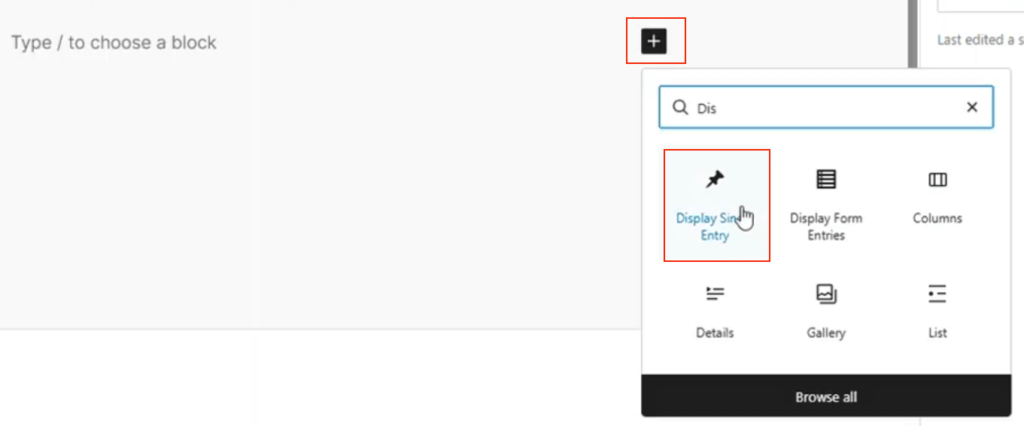
Step 2
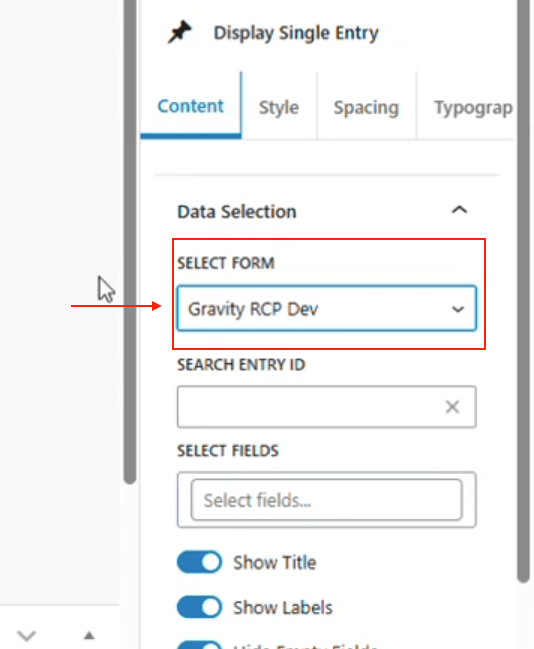
Add the Single Entry block.
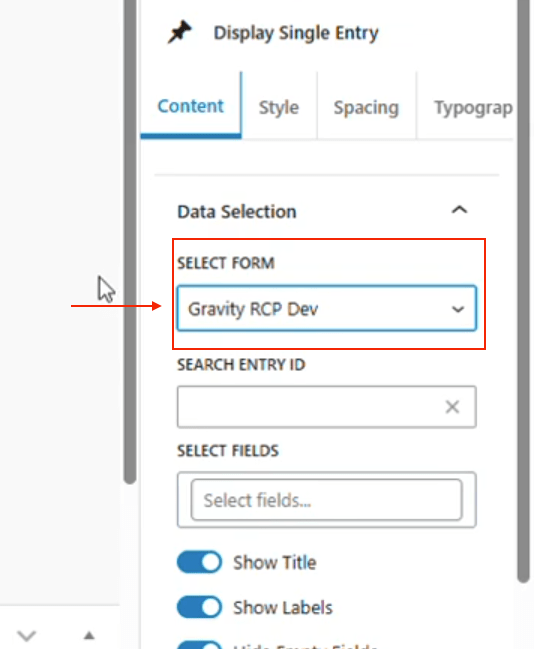
Step 3
Select the form you want to display entries from.
Step 4
Search for the specific entry by:
- Entry ID
- Name or field values
Once selected, the block will display the full details of that submission.
Styling the Single Entry Page
The Single Entry block also includes styling options such as:
- Background color
- Border color
- Typography settings
- Spacing and padding
These allow the entry display to match your site’s design.
Advanced Filtering & Display Controls (Pro)
Display Form Entries Pro allows you to control which entries appear on the page.
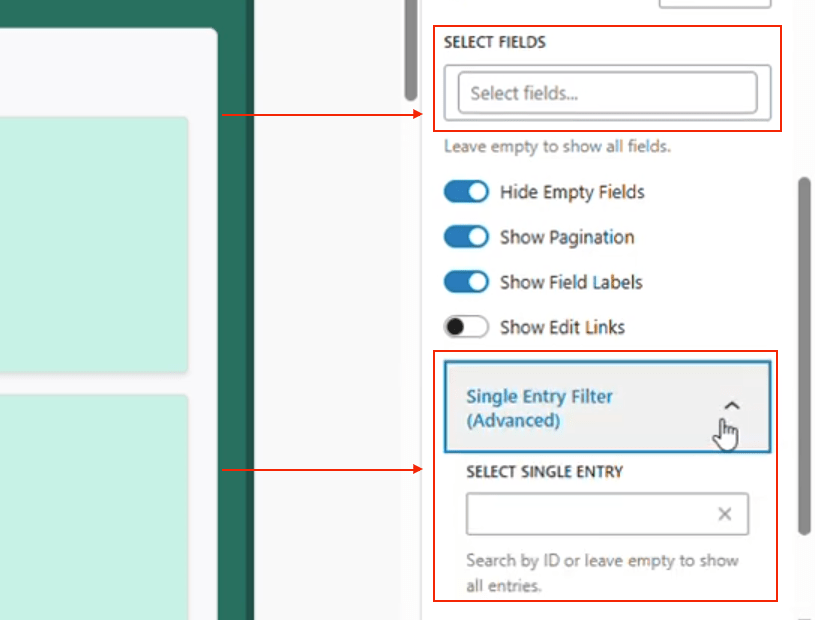
For example, you can choose to display only specific entries using their entry ID.
Filtering by Entry ID
Step 1
Open the Display Form Entries block.
Step 2
Enter a specific Entry ID in the filter settings.
Step 3
Save the page.
Now only that specific entry will appear.
Limiting Number of Entries
You can also control how many entries appear on a page.
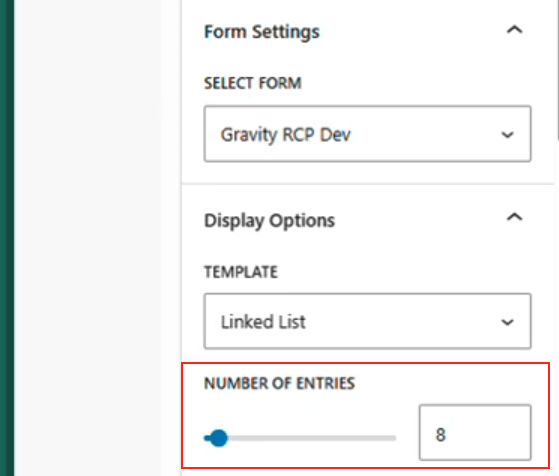
For example:
- Display only 5 entries
- Display only 10 entries
This is useful for:
- Featured listings
- Short directories
- Dashboard summaries
Customizing the Look and Feel (Pro)
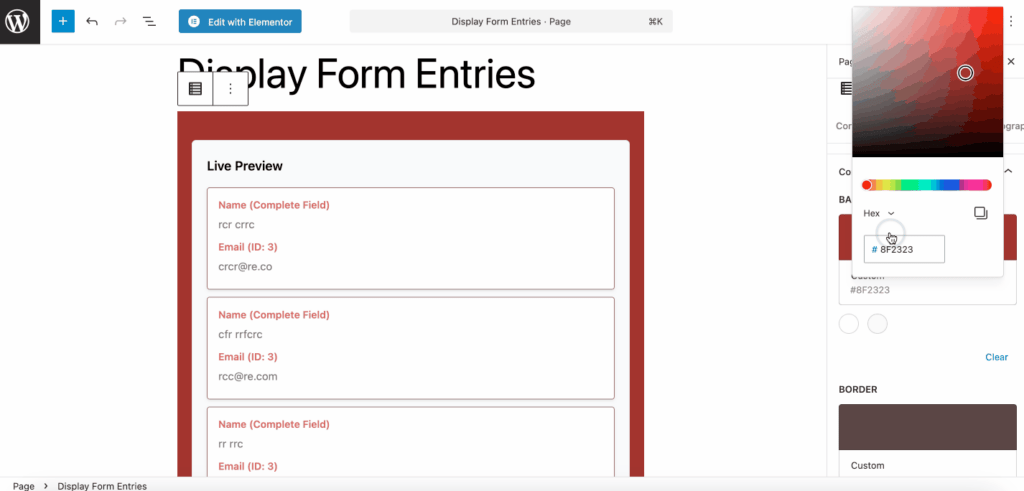
Display Form Entries includes powerful styling options directly inside the block settings.
This allows you to customize the design without writing CSS.
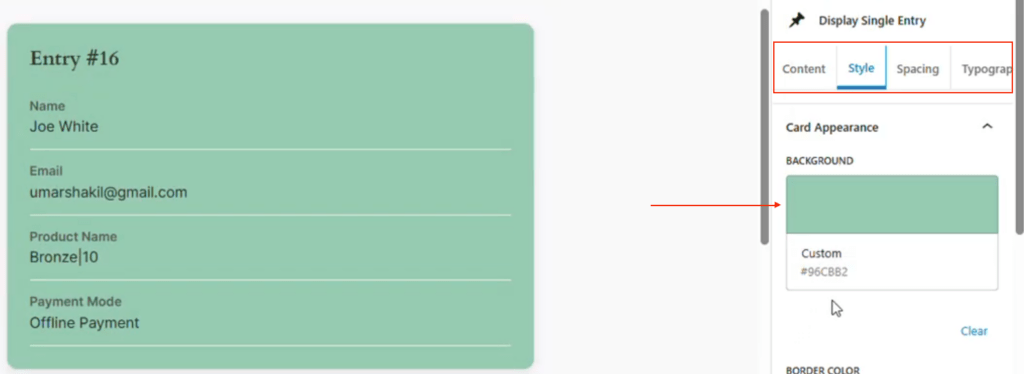
Styling Options
Inside the Style tab, you can customize:
- Container background color
- Border color
- Border width
- Border radius
- Entry item background
Typography Controls
You can also customize text appearance including:
- Label font size
- Value font size
- Font weight
- Text colors
Changes are previewed live in the editor so you can immediately see the result.
Spacing Controls
The plugin also allows you to adjust layout spacing, including:
- Top margin
- Bottom margin
- Padding
These settings help improve readability and layout balance.
Displaying Specific Form Fields
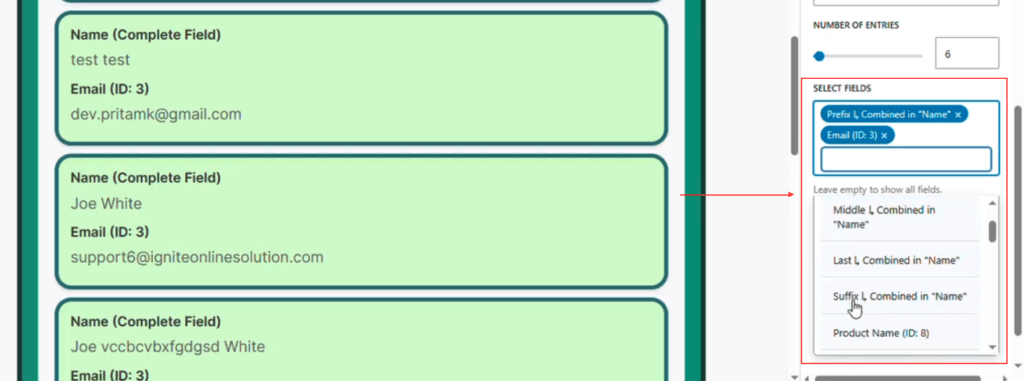
Display Form Entries allows you to choose exactly which form fields appear in the entry display as explained in this article.
Instead of showing the entire submission, you can select only the fields that matter.
Selecting Fields to Display
Step 1
Open the Display Form Entries block settings.
Step 2
Locate the field selection area.
Step 3
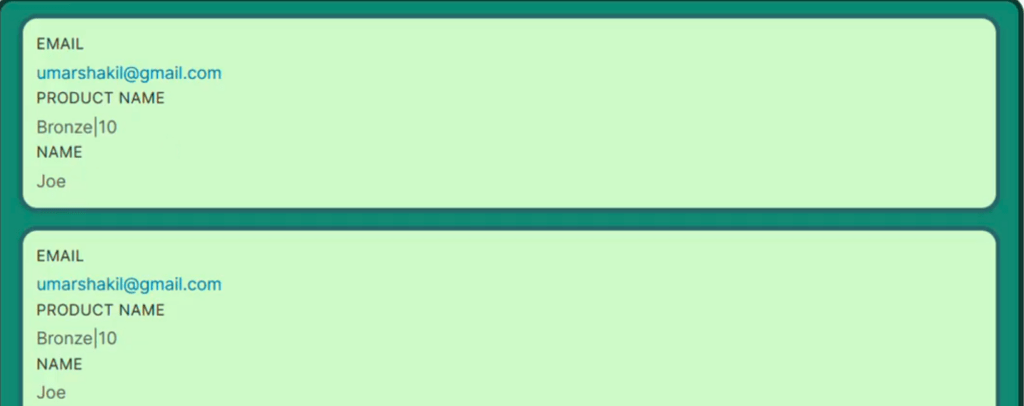
Choose the fields you want to display.
Examples include:
- First Name
- Last Name
- Product Name
Only the selected fields will appear on the front end.
If you select all fields, the plugin will display the entire submission.
Using Featured / Starred Entries (Pro)
Display Form Entries Pro allows administrators to highlight specific submissions as featured entries.
Featured entries are automatically displayed at the top of the list.
Marking an Entry as Featured
Step 1
Go to:
Forms → Entries
Step 2
Find the entry you want to feature.
Step 3
Click the star icon next to the entry.
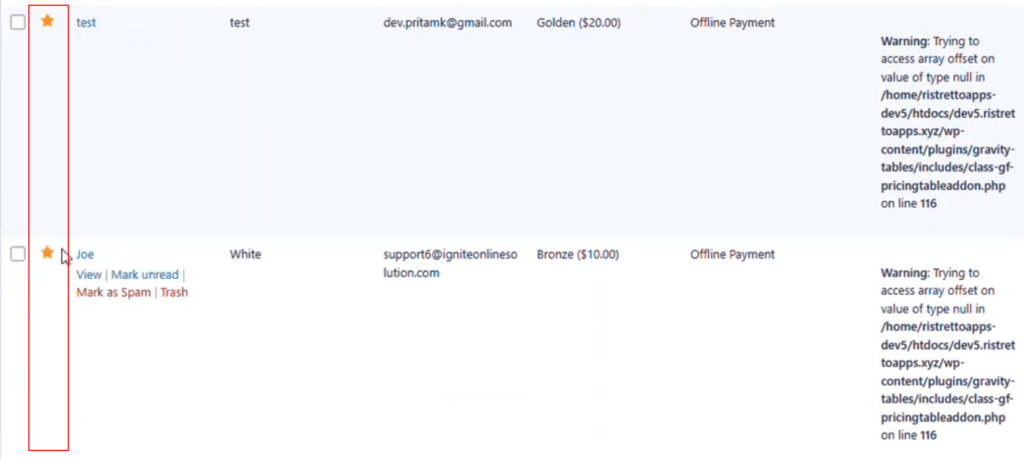
The entry will now be marked as featured.
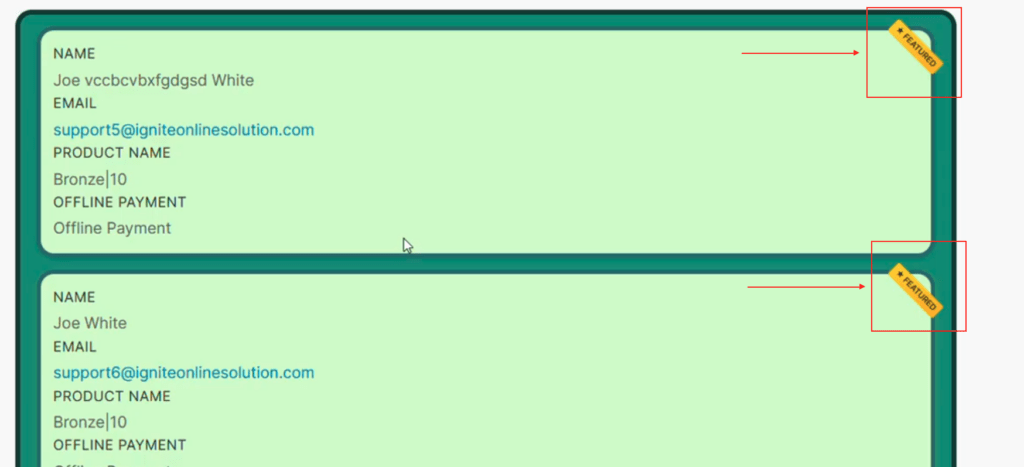
How Featured Entries Appear
Once starred:
- A yellow star indicator appears on the entry.
- The entry moves to the top of the list.
This works across multiple display layouts, including:
- List view
- Card view
Removing Featured Status
To remove the feature:
- Return to Forms → Entries.
- Click the star icon again.
The entry will return to its normal position in the list.
Best Use Cases for Display Form Entries
Display Form Entries is highly flexible and can power many different use cases.
Common examples include:
- Vendor directories
- Member profiles
- Product listings
- Event submissions
- Job boards
- Client dashboards
- Internal reporting tables
Because it builds directly on Gravity Forms, it allows you to create powerful data-driven pages without custom development.
Conclusion
Display Form Entries extends the power of Gravity Forms by allowing you to present form submissions directly on your website.
With flexible layouts, front-end editing, advanced filtering, and styling options, the plugin makes it easy to turn simple form submissions into fully functional front-end experiences.
Whether you’re building a public directory, a member portal, or an internal dashboard, Display Form Entries provides a lightweight and flexible solution for displaying and managing your form data.
